Back to BlogTools
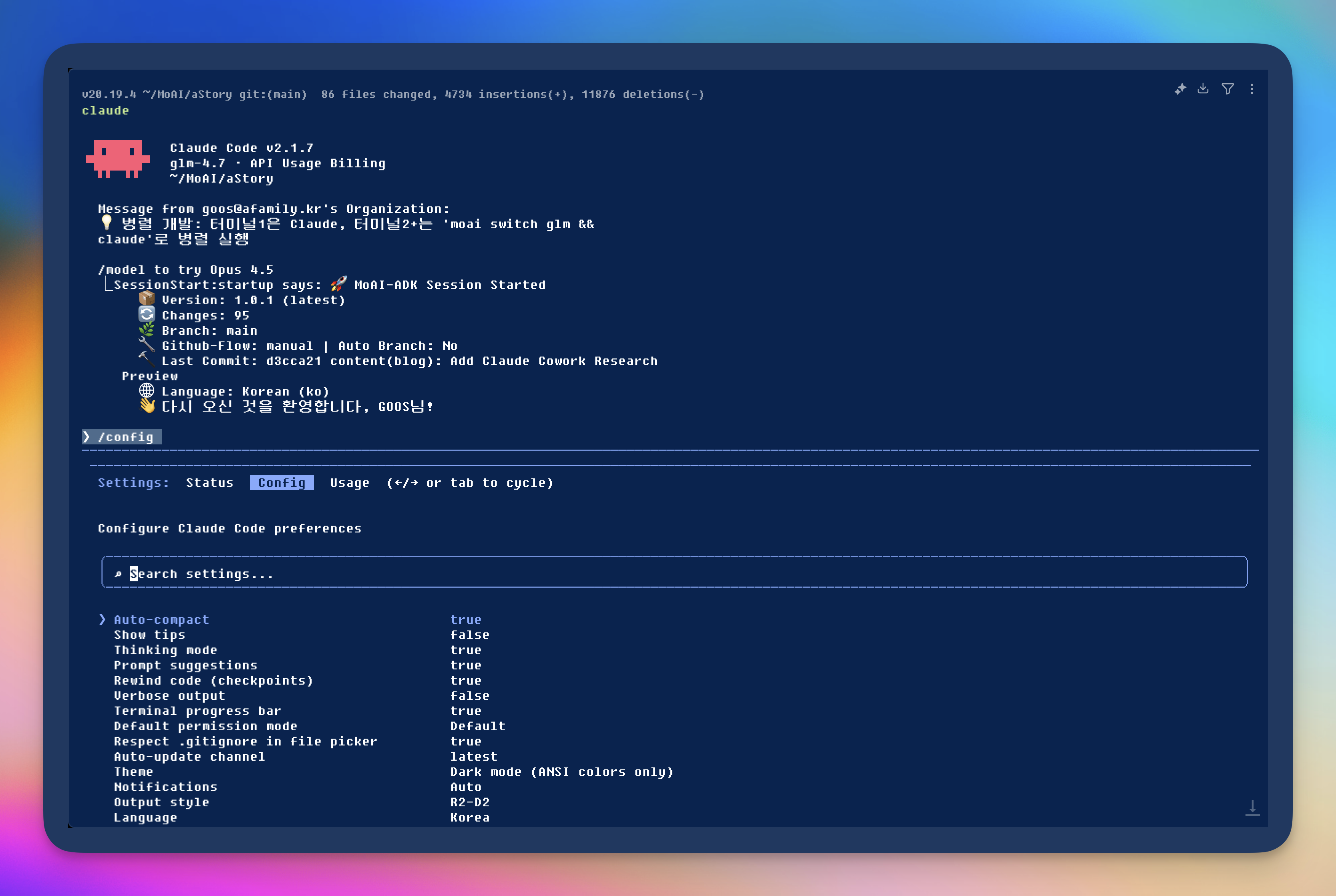 Warp Terminal - Theme Applied Screenshot
Warp Theme Release: Tomorrow Night Blue
3.13min
warpterminalthemetomorrow-night
Introducing a Warp terminal theme with a deep, calm blue background and eye-friendly color combinations. Create your own terminal environment with the nostalgic RoundGothic+Fixedsys font from the 1990s.
Today I'm sharing a Warp terminal theme I've been using personally.
This theme features a deep, calm blue background with eye-friendly color combinations
that minimize eye fatigue during long coding sessions.
Combined with the RoundGothic+Fixedsys font that evokes nostalgia for the
1990s PC communication era, you can build a high-quality retro terminal environment.
Theme Introduction
Tomorrow Night Blue
This theme is a customized version based on the popular Tomorrow Night theme series,
tailored to my preferences. The most distinctive feature is the deep blue background (
#002451),
which reduces eye strain even in dark environments.Color Palette:
| Color | Code | Purpose |
|---|---|---|
| Background | #002451 | Terminal background |
| Accent | #82aaff | Folders, links, highlights |
| Foreground | #ffffff | Default text |
| Red | #ff5874 | Errors, git diff deletions |
| Green | #c3e88d | Success messages, strings |
| Yellow | #ffcb6b | Warnings, numbers |
| Purple | #c792ea | Keywords, special characters |
| Cyan | #89ddff | Operators, brackets |
Key Features
- Eye-friendly Contrast: Properly adjusted contrast between background and foreground colors makes it suitable for long-term use.
- Unified Color Temperature: All colors maintain a cool tone for visual consistency.
- Syntax Highlighting Optimization: Colors are arranged to make syntax highlighting for major languages like TypeScript and JavaScript clearly visible.
Installation Guide
Let me guide you through applying this theme to your Warp terminal step by step.
Step 1: Download Theme File
Download the theme file.
Download Link: tomorrow-night-blue.yaml
After downloading, save the file to the
~/.warp/themes/ directory.YAML
name: Tomorrow Night Blueaccent: "#82aaff"background: "#002451"foreground: "#ffffff"details: darkerterminal_colors:normal:black: "#002451"red: "#ff5874"green: "#c3e88d"yellow: "#ffcb6b"blue: "#82aaff"magenta: "#c792ea"cyan: "#89ddff"white: "#ffffff"bright:black: "#4a6c8e"red: "#ff5874"green: "#c3e88d"yellow: "#ffcb6b"blue: "#82aaff"magenta: "#c792ea"cyan: "#89ddff"white: "#ffffff"
Step 2: Open Warp Settings Folder
Press
Cmd + , in the Warp terminal to open settings and find the Themes section.Step 3: Add Theme File
In the Warp theme settings, click the Custom tab, click the
+ button,
and paste the YAML content or load the file.Step 4: Apply Theme
Select Tomorrow Night Blue from the theme list to apply it immediately.
Font Settings
The font that best complements this theme is RoundGothic+Fixedsys.
This is a modern reinterpretation of bitmap fonts used in 1990s PC communication
and Korail display boards, combining RoundGothic for Korean and Fixedsys for English.
Font Installation
- Download the font file from the official download page.
- Extract the zip file and double-click the
.ttffile to install it. - In Warp settings, go to the Appearance tab and set Font Family to
RoundGothic+Fixedsys. - Choose a Font Size between 14-16px that suits you.
Font License
This font is provided as public domain, so you can use it freely including for commercial purposes.
Actual Usage
Warp Terminal - Theme Applied ScreenshotScreenshot - Tomorrow Night Blue theme in actual use
As you can see in the screenshot above, the deep blue background makes code easy to read,
and each color is clearly distinguished for excellent readability.
Conclusion
I created this theme because while using Warp, I felt existing themes were too bright
or lacked sufficient color contrast. After several attempts, I found this color combination
and am now sharing it as I've been highly satisfied using it personally.
Please try the theme and provide feedback if you need improvements or want additional features.
I'll continue to update it.